Tracking Conversions for Your own Product
MaxConv can also help to scale your marketing business for your own product, or any other business that dones't have "Offer Click", such as pay per call, email list collection...etc.
There are two methods to track conversions: via s2s postback or via conversion tracking script, choose a method by your situation.
via S2S postback
Pre-requisite:
access to product source code
js coding knowledge
To track conversions by s2s postback, follow these two steps:
Step 1. Get MaxConv Click ID and Store it
First you need to get maxconv click id, which is a unique value that MaxConv used to attribute conversions to corresponding sources.
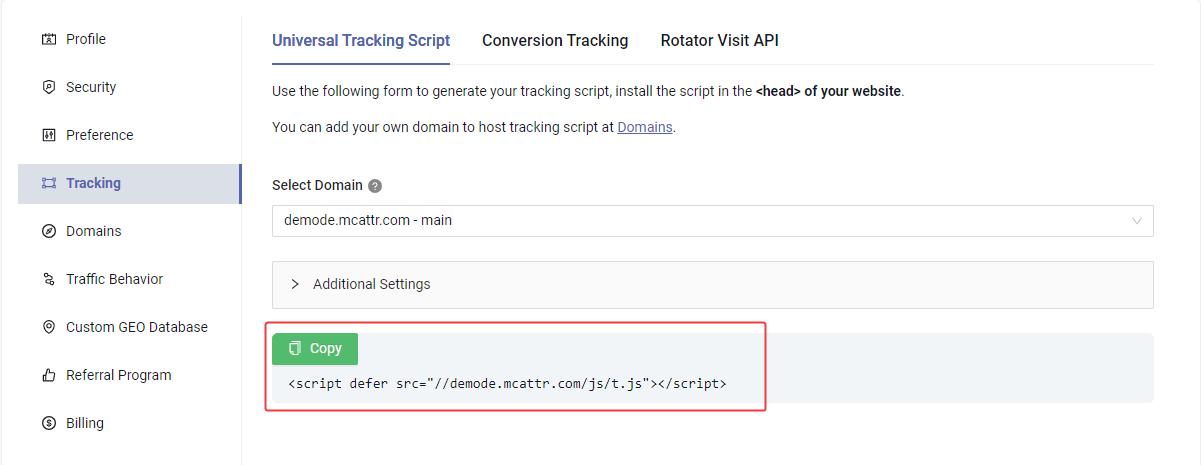
To get maxconv click id, please import our universal tracking script to your landing page (product page). You can find your tracking script link at Settings > Tracking
Then use the following code to fetch the click id:
<script>
window.addEventListener("maxconv:ready", function () {
    //maxconv is ready

    //get current click id
    var clickId = maxconv.getClickId();

    // do your work with click id, such as save click id to cookie
    // ...
});
</script>
<script defer src="//demode.mcattr.com/js/t.js"></script>
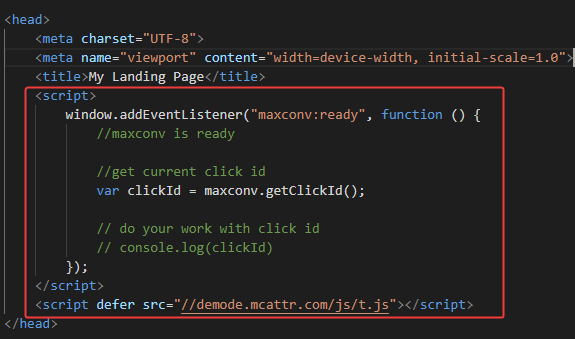
Your landing page (product page) source code should looks like:
Store this click id anyway you want, such as store it in cookie or localstorage, submit it to your member system...etc.
Step 2. Send MaxConv Click ID Back to S2S Postback URL
The nenxt step is to notify MaxConv there is a conversion happen, first retrieve the click id that you got from step 1, and then notify MaxConv s2s postback URL with clid parameter.
To get your s2s postback url, go to Settings > Tracking > Conversion Tracking

copy that url, modify it, append the click id as clid=xxx, then submit a HTTP GET request to this URL.
For example, if the click id you got from step 1 is abc123, then you should notify https://demode.maxconvtrk.com/conv?clid=abc123
Don't use above url as your postback URL, every customer in MaxConv have their own url, get yours at Settings > Tracking > Conversion Tracking
For meanings of each parameter in s2s postback URL, check S2S Postback URL Parameters
via Conversion tracking script
If you can't do the s2s postback to MaxConv, you can still track conversion by js script, follow these two steps:
Step 1. Put universal tracking script on your lander
First, you need to put tracking script to all of your landing page (product page) that you will send traffic to.
Go to Settings > Tracking > Universal Tracking Script, copy the universal tracking script and put it between <head></head> of your lander.
Your landing page (product page) source code should looks like:

Step 2. Put universal tracking script on your lander
Now you need to find your "thank you" page, which is a page that your customer arrives after a successful payment or desired action. Open thank you page source code.
Then find your conversion tracking script at Settings > Tracking > Conversions Tracking, scroll down and copy the script and put it between <head></head> of your thank you page.
Your thank you page source code should looks like:

That's it! You are all set, the next step it to generate campaign url and start promoting.
Check Track Conversions via JS Script for more information.
Can I track other conversions type?
You may need to track multiple conversions type, for instance - you may need to track registers and orders at the same time. To do so, please first choose one of conversions as "main conversions", to demonstrate how to do it, let's choose orders as main conversions.
So when your customer place a order, you should notify the standard s2s postback url, like above.
But when your customer perform another action that you consider as a conversions, like registers, you should notify s2s postback URL with another parameter event, like: https://demode.maxconvtrk.com/conv?clid=abc123&event=register
After doing that, you need to let Maxconv know that you want to tracking "event=register" as conversions named "Registers", to do so, please go the Measurement > Custom Conversion to create a custom conversion.
For more information about custom conversions, check Custom Conversion