AppLovin Integration
MaxConv has integrated with AppLovin (Axon Ads Manager for websites), the integration provides the following benefits:
- Send conversions (including custom conversions) to AppLovin via the Conversion API.
- Synchronize your campaign costs with MaxConv.
Part 1. Setting Up integration
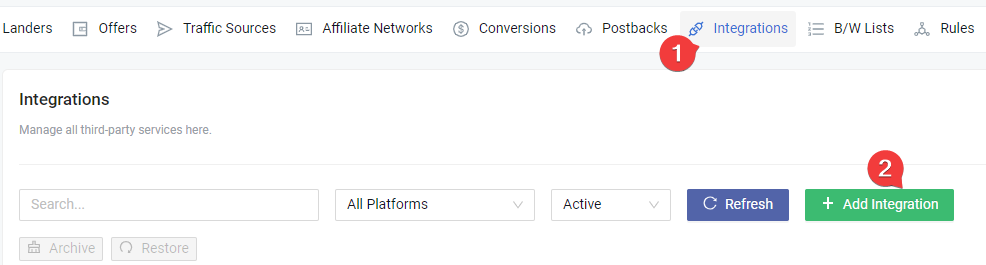
Click on the Integrations menu in the MaxConv dashboard.
Click the Add Integration button.
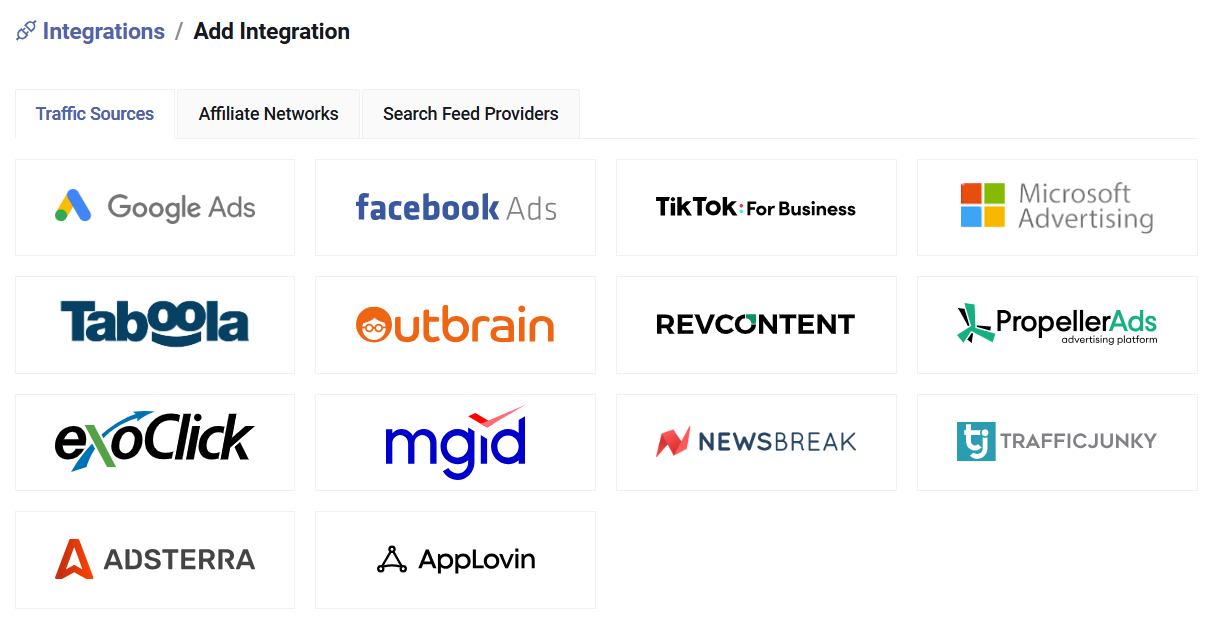
- On the integration list, click on the AppLovin card.
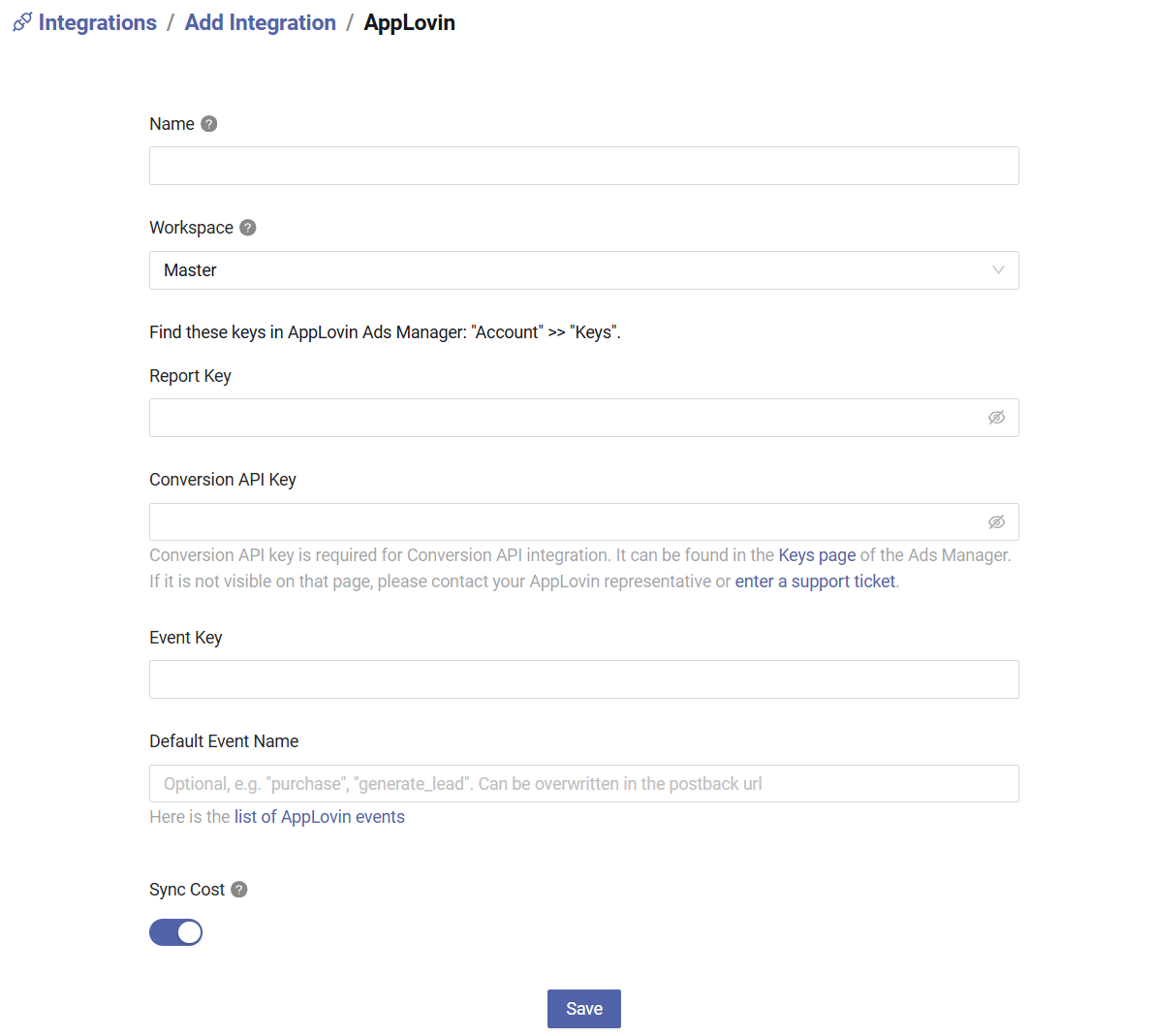
Type the integration name, this is for your personal reference.
Enter your Report Key and Event Key, you can find them by login AppLovin Ads Manager, then go to Account > Keys.
Optionally enter your Conversion API Key. Conversion API key is required for Conversion API integration. It can be found in the Keys page of the Ads Manager. If it is not visible on that page, please contact your AppLovin representative or enter a support ticket.
Optionally enter a default event name, e.g.
purchaseorgenerate_lead, see the list of AppLovin events. You can also set or overwrite the event name in the postback URL later.Whether do you want to synchronize campaign cost data or not.
Click Save button to create the integration.
Part 2. Setting Up traffic source
The next part is to create a traffic source with the postback URL of integration, so MaxConv can send conversions data to AppLovin.
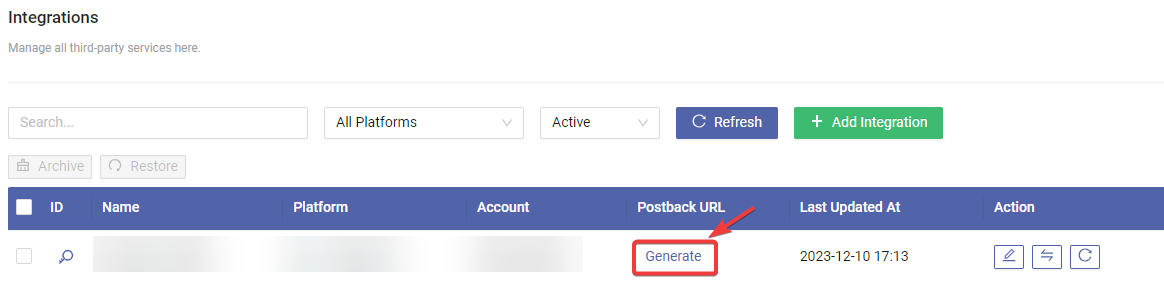
Find your integration row in the table, click the Generate button to generate a postback URL.
Optionally provide the event name to overwrite the integration's default one, and the email / phone number of the user for better matching. You can hardcode the values or use dynamic tokens, AppLovin hashes plain values automatically.
Click the Generate button.
Copy the postback URL to any text editor, you will need this URL in subsequent steps.
Go to the Traffic Source menu in MaxConv, click the Create to create a traffic source.
Click the AppLovin card in the template list. The external click ID parameter is
aleid, AppLovin appends it to your URL automatically after an ad click.Enable the Traffic source postback URL option and paste the postback URL you copied in step 4 into the text box.
Adjust other settings as needed, and then click the Save button to create the traffic source.
AppLovin requires the URL of the page where the conversion happened. MaxConv sends the lander URL of the visit, so conversions of campaigns without a lander will not be sent to AppLovin.
Part 3. Setting Up MaxConv campaign
Now you can start creating campaign in MaxConv.
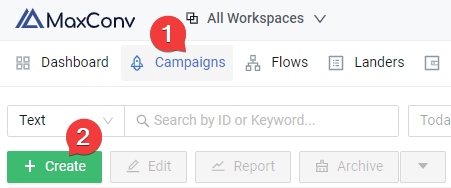
Click on the Campaigns menu in MaxConv dashboard.
Click the Create button.
Provide basic information, choose the traffic source you have created in the Part 2
Add your landers and offers in the Destinations.
Click the Save button to create campaign.
After creating a campaign, you can view the tracking details in the Tracking tab, implement it based on your needs.
Part 4. Setting Up AppLovin campaign
Login to your AppLovin Ads Manager and create campaign, when setting the destination URL of the ad, paste the Campaign URL you copied from the Tracking tab of campaign.
Part 5. Match the MaxConv campaign with AppLovin campaign
To enable cost synchronization, you need to match the MaxConv campaign with an AppLovin campaign so that MaxConv knows where to pull cost data, to start campaign matching, perform following steps.
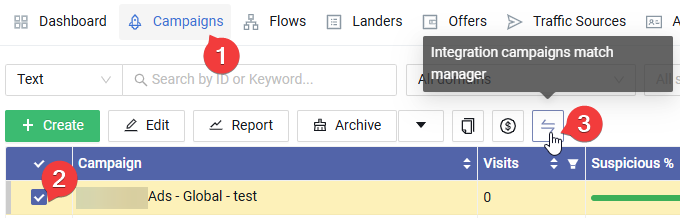
Click on the Campaigns menu in MaxConv dashboard.
Check the campaign that you want to match.
Click the Integration Campaign Match Manager button.
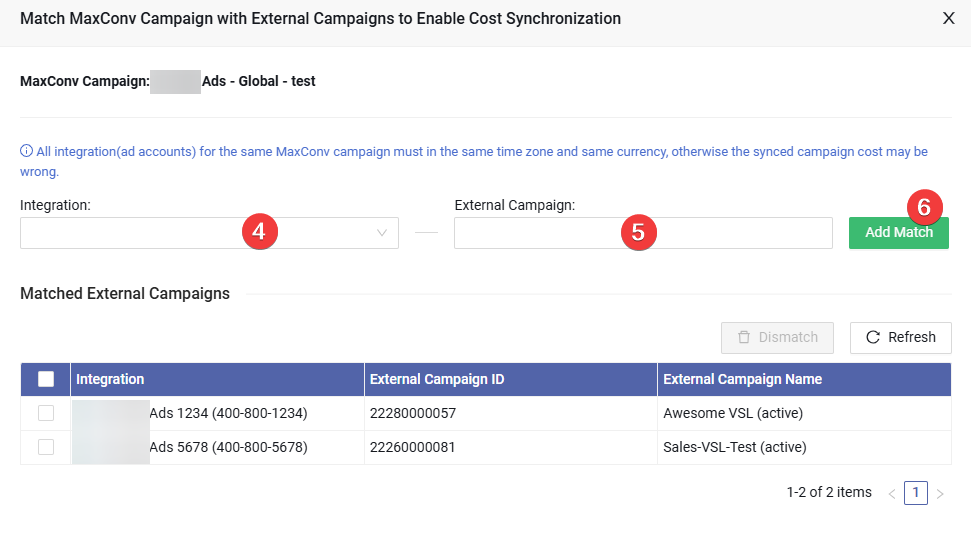
Choose the integration, MaxConv will try to pull a campaign list from that integration, wait until it loaded.
Choose all the campaigns that you want to match, you can choose multiple campaigns at a time.
Click the Add Match button to save the matching.
The campaign list is pulled from the AppLovin report of the last 89 days (including today), a newly created campaign will be listed after it has got impressions. Cost data of AppLovin is in UTC time zone.
Once matched, you will see an AppLovin icon in front of the campaign name in the Campaigns section of the MaxConv dashboard, and MaxConv will begin synchronizing cost data within an hour.
The impressions, clicks and cost of AppLovin campaign shown in the Integration Campaign Match Manager are the totals of the last 89 days (including today), which is the longest range the AppLovin reporting API supports.
Manage Campaign Status in MaxConv
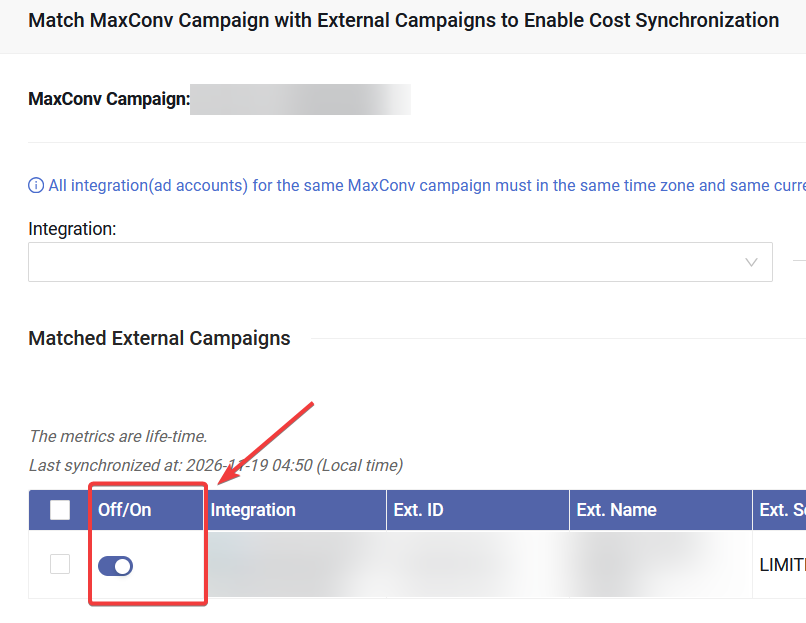
To manage external campaign status within MaxConv, follow these steps:
- Choose the campaign and click the "Match Manager" button.
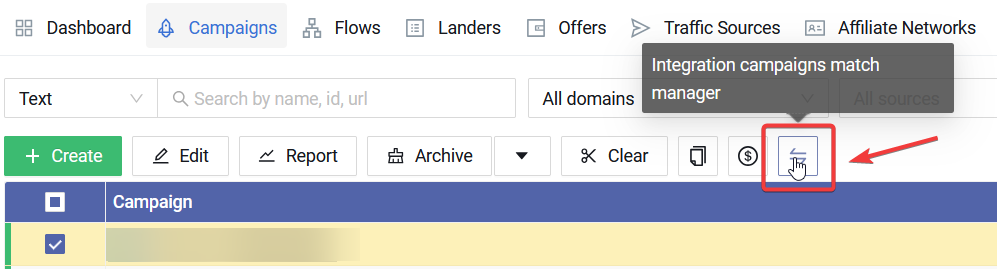
- You can now view the campaign status, as well as turn on/off it by clicking switch.
FAQ
Have questions? Check Integration FAQ