TrafficJunky Integration
MaxConv has integrated with TrafficJunky, the integration provides the following benefits:
- Send conversions (including custom conversions) to TrafficJunky.
- Synchronize your campaign costs with MaxConv.
- Manage TrafficJunky campaign status within MaxConv.
Part 1. Setting Up integration
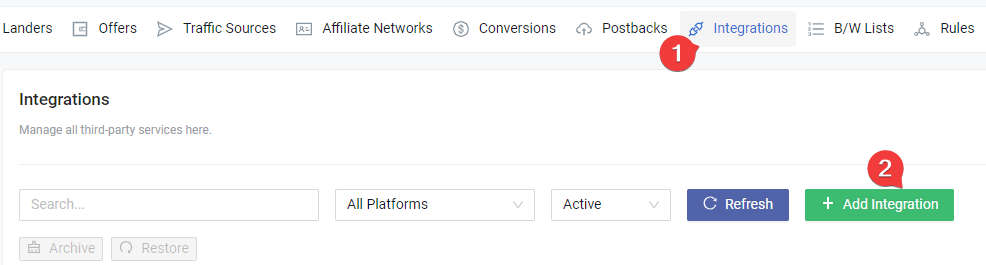
Click on the Integrations menu in the MaxConv dashboard.
Click the Add Integration button.

- On the integration list, click on the TrafficJunky card.
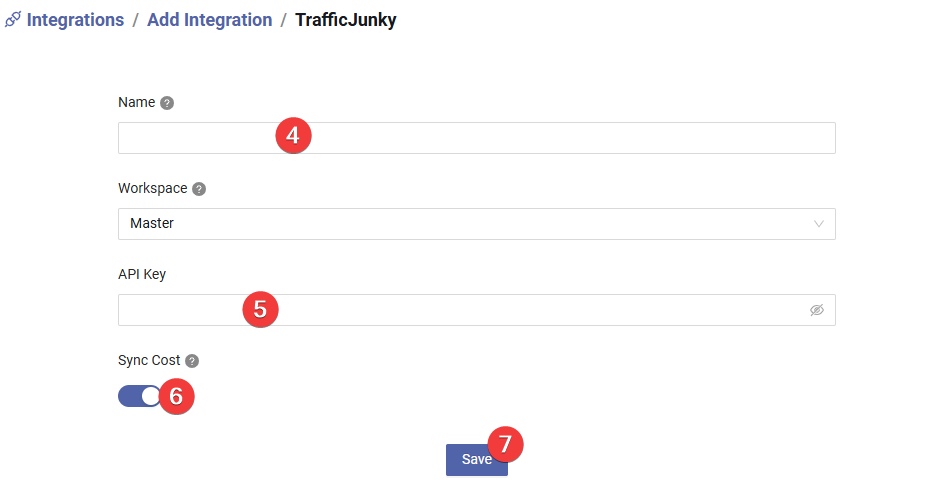
Type the integration name, this is for your personal reference.
Enter the TrafficJunky API key.
Whether do you want to synchronize campaign cost data or not.
Click Save button to create the integration.
Part 2. Setting Up traffic source
The next part is to create a traffic source with the postback URL of integration, so MaxConv can send conversions data to TrafficJunky.
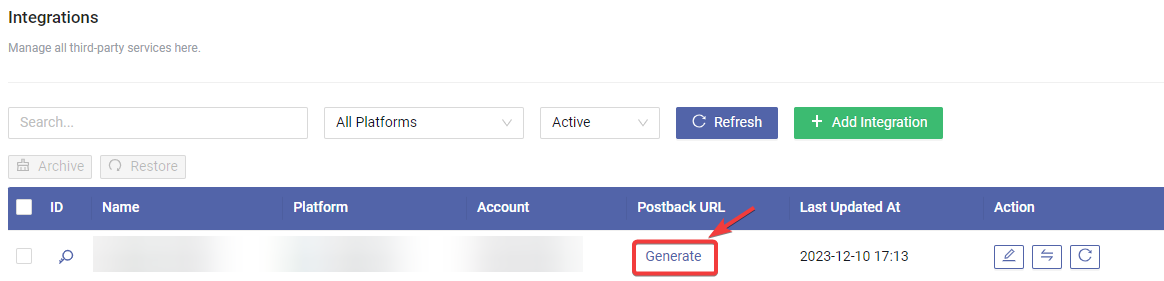
- Find your integration row in the table, click the Generate button to generate a postback URL.
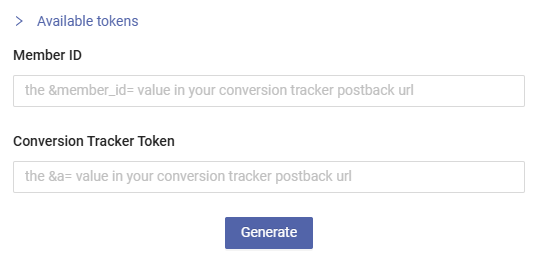
Provide the value of
Member IDandTracker Tokenparameter.tipThe
Member IDis the&member_id=value in your postback URL and theTracker Tokenis the&a=value.Click the Generate button.
Copy the postback URL to any text editor, you will need this URL in subsequent steps.
Go to the Traffic Source menu in MaxConv, click the Create to create a traffic source.
Click the TrafficJunky card in the template list.

Enable the Traffic source postback URL option and paste the postback URL you copied in step 4 into the text box.
Adjust other settings as needed, and then click the Save button to create the traffic source.
Part 3. Setting Up MaxConv campaign
Now you can start creating campaign in MaxConv.
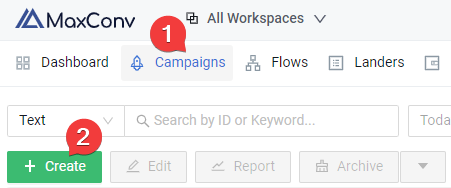
Click on the Campaigns menu in MaxConv dashboard.
Click the Create button.
Provide basic information, choose the traffic source you have created in the Part 2
Add your landers and offers in the Destinations.
Click the Save button to create campaign.
After creating a campaign, you can view the tracking details in the Tracking tab, implement it based on your needs.
Part 4. Setting Up TrafficJunky campaign
Login to your TrafficJunky account and create campaign, adjust basic settings, when creating ad, paste the Campaign URL you copied from the Tracking tab of campaign, paste it to the Destination URL field.
Part 5. Match the MaxConv campaign with TrafficJunky campaign
To enable cost synchronization, you need to match the MaxConv campaign with a TrafficJunky campaign so that MaxConv knows where to pull cost data, to start campaign matching, perform following steps.
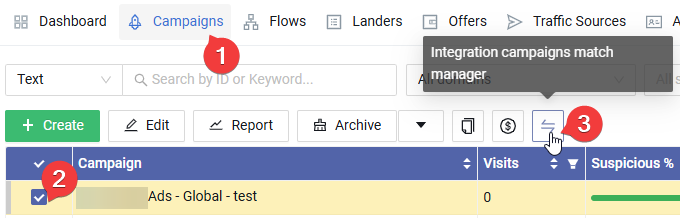
Click on the Campaigns menu in MaxConv dashboard.
Check the campaign that you want to match.
Click the Integration Campaign Match Manager button.
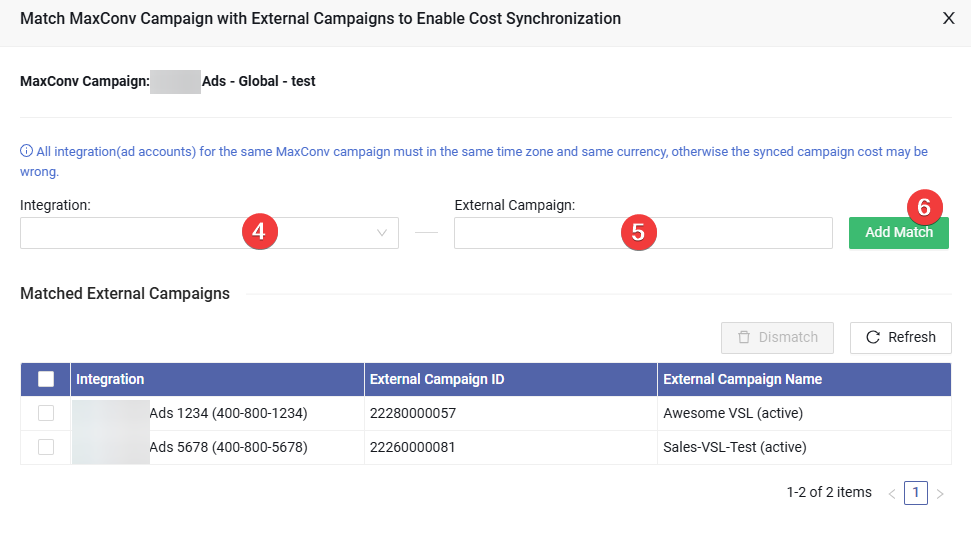
Choose the integration, MaxConv will try to pull a campaign list from that integration, wait until it loaded.
Choose all the campaigns that you want to match, you can choose multiple campaigns at a time.
Click the Add Match button to save the matching.
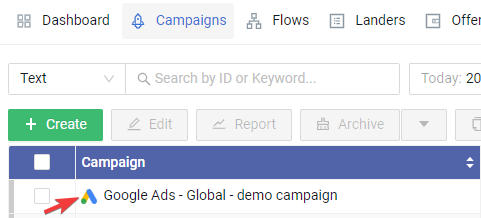
Once matched, you will see a TrafficJunky icon in front of the campaign name in the Campaigns section of the MaxConv dashboard, and MaxConv will begin synchronizing cost data within an hour.
Manage campaign status in MaxConv
To manage TrafficJunky campaign status within MaxConv, follow these steps:
- Click the Columns setting at the top right of the table.

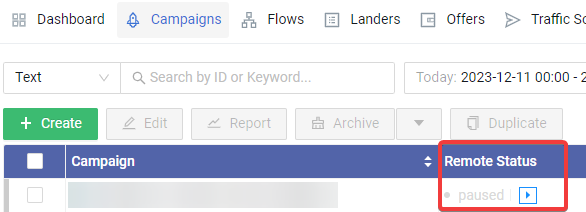
- Enable the Remote Status column, drag it to the top, then click the Apply button.
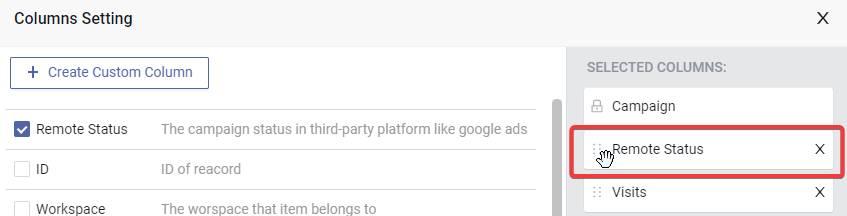
- You can now view the TrafficJunky campaign status, as well as start or pause it by clicking the "play" or "pause" icon.
FAQ
Have questions? Check Integration FAQ