Google Certified Click Tracker
MaxConv is a Google-certified tracker that can be found at https://support.google.com/google-ads/answer/13707634?hl=en. It allows you to create a certified tracking link that can be utilized in the Google Ads tracking template.
The certified tracking is available in the Pro plan and requires an application. Please contact support@maxconv.com to apply before subscribing.
What are the benefits of using Google-certified tracking?
It is simply a whitelisted domain that can be used in the Google Ads tracking template, and you won't encounter the "uncertified" error.
Nonetheless, it does NOT provide a 100% assurance that your ads will always be approved, or that your Google Ads account will remain completely safe.
How to create a certified tracking link
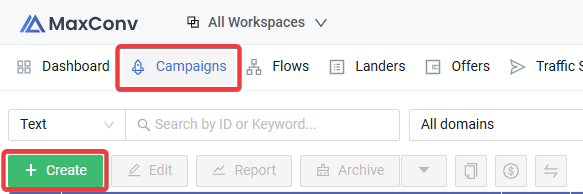
- Click on the Campaigns menu in the top navigation of the dashboard, and then click the green Create button.
Provide your campaign name, choose the traffic source, and then enable the "Google certified tracking" option. Enter the URL of the next destination into the "next immediate hop url" field. MaxConv will redirect to this URL when people click your ads. Adding additional tracking macros is allowed.
For example, if you are directly promoting a product whose URL is
https://offer.com/track?offer_id=123&aff_id=456, to enable conversion tracking, you may want to add&subid={mc_click_id}. Then you should enter the full URL:https://offer.com/track?offer_id=123&aff_id=456&subid={mc_click_id}.For adding macros to certified agencies, please check the Promote offer from Google certified agency chapter below.
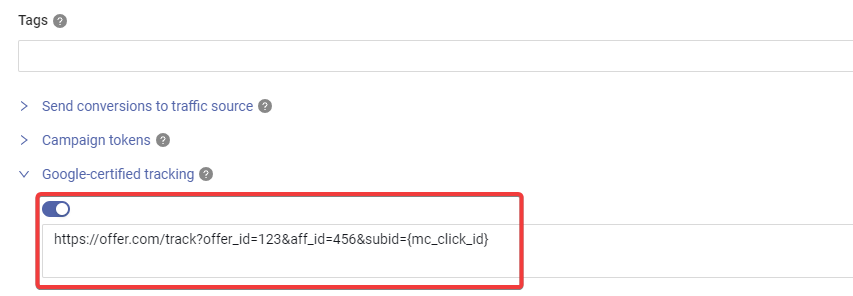
You still need to choose at least one offer in the campaign destination so that MaxConv can attribute traffic and conversions to the right offer. It's recommended to choose the offer whose URL is the same as the "Next hop url" value.
- Switch to the Destination tab and configure how to redirect visitors to your offer link in the
Transition to Offerfield.
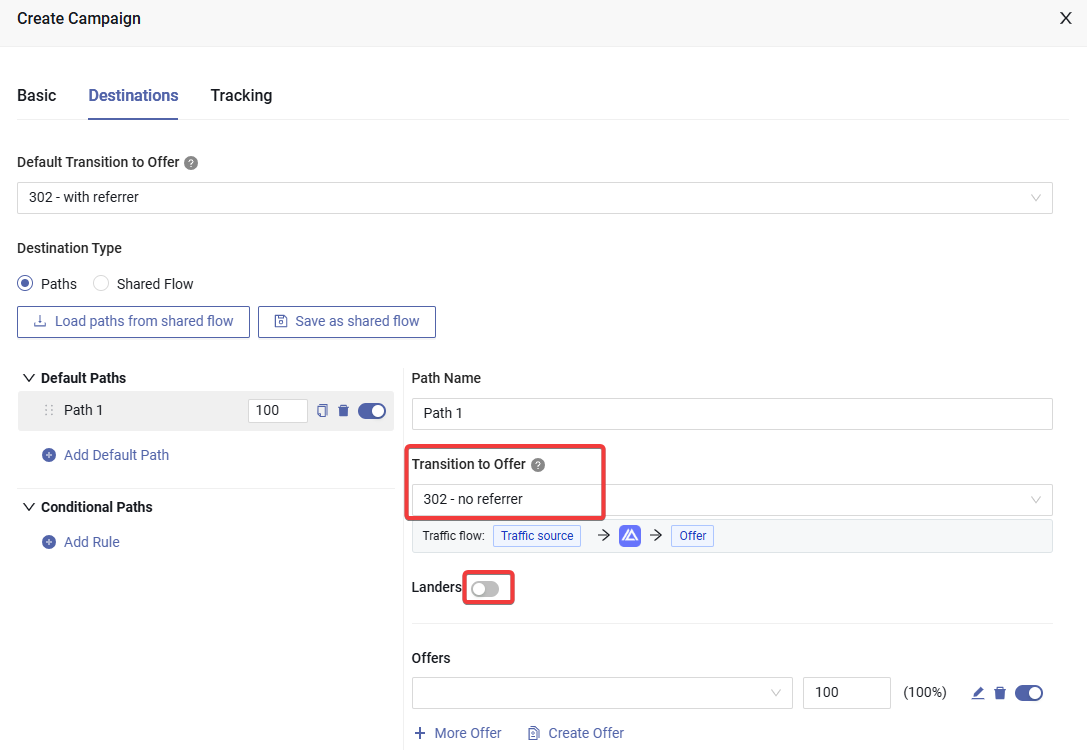
If you want to remove the referrer information, choose 302 - no referrer or meta refresh - no referrer.
In most cases, you need to turn off the lander when using Google-certified tracking.
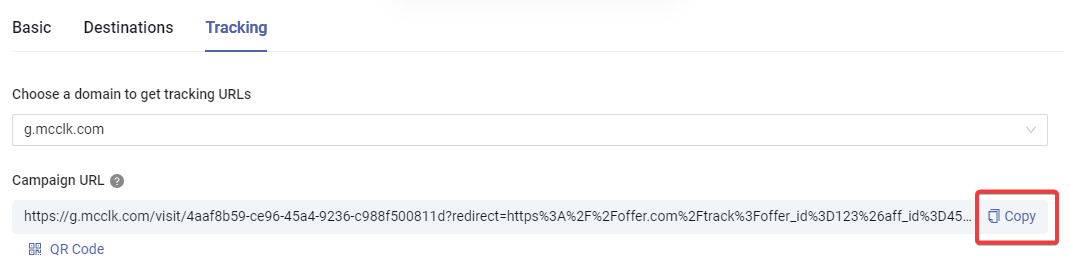
- After creating the campaign, copy the campaign link in the Tracking tab to set up the campaign in Google Ads.
GCLID (Google Click ID) conversion attribution
As recommended by Google Ads best practices - advertisers should use the auto-tagged gclid as the primary click ID for conversion attribution.
We support gclid-based conversion tracking. To do this, follow below steps:
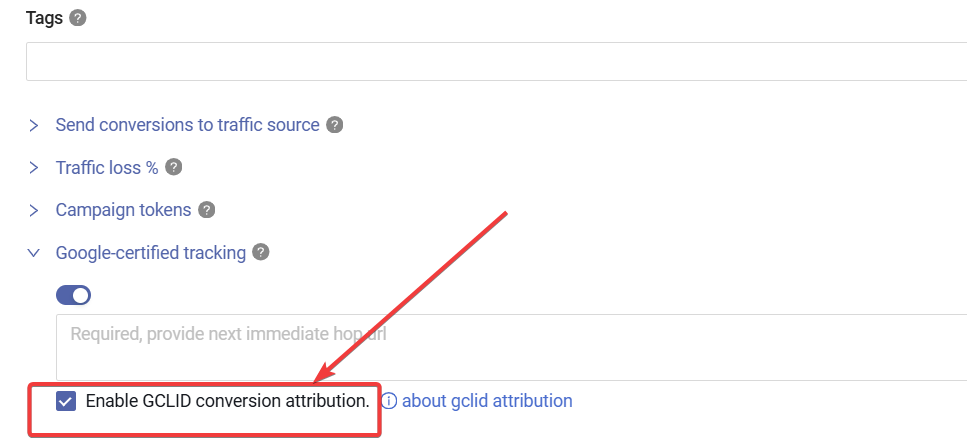
- Enable the GCLID conversion attribution option in the campaign settings like below screenshot.
Add our campaign link to the Tracking Template in the ad level of Google ads campaign.
Update the S2S postback URL to send gclid back to MaxConv.
You need to send the gclid value with the gclid= parameter in the S2S postback URL.
For example, if your S2S postback URL looks like https://demode.mcgo2.com/conv?clid={sub2}:
Then you can change clid= to gclid=, so your S2S postback URL for gclid-based conversion tracking should be:
https://demode.mcgo2.com/conv?gclid={sub2}.
Adjust the {sub2} to whatever placeholder you need for your advertisers to send the actual gclid value.
Promote offers from Google-certified agencies
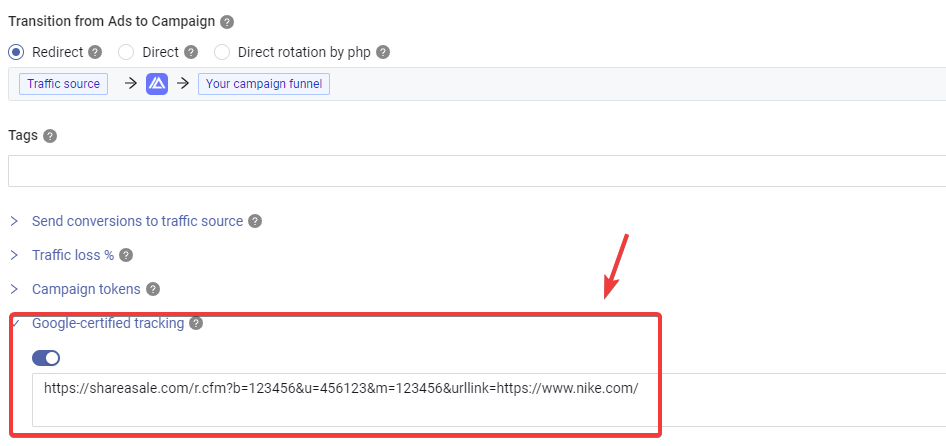
If you are promoting offers from a Google-certified agency like Awin, ShareASale, etc., you may need to add the Final URL to their specific parameter. For example, a ShareASale link looks like https://shareasale.com/r.cfm?b=123456&u=456123&m=123456, and let's say it redirects to the final URL https://www.nike.com/ — you should append &urllink=https://www.nike.com/.
So when creating a campaign in MaxConv, you should enter https://shareasale.com/r.cfm?b=123456&u=456123&m=123456&urllink=https://www.nike.com/ into the "Next immediate hop url" field.
- ShareASale: the parameter is
&urllink=[Final URL HERE] - Awin: the parameter is
&force_transparent=true&p=[Final URL HERE] - Impact Radius: the parameter is
&force_deeplink=1&u=[Final URL HERE] - AdmitAd: the parameter is
&redirection_url=[Final URL HERE]
For other certified agencies, you may need to consult their support team for the correct parameter name.
After creating the campaign, copy the campaign link in the Tracking tab to set up the campaign in Google Ads.
FAQ
Can I use flow or armor with Google-certified tracking?
No, you cannot. The purpose of the Google click tracker certification program is to clearly state the complete next hop from an ad click tracker. Therefore, when you enable Google-certified tracking, all conditional redirection features will stop working.
Can I use my own domain to get a certified link?
No, the Google certification is at the domain level. Adding your domain to our tracking platform does not automatically certify it — you must use our certified domain.
I encountered the error "Add {lpurl} or other landing page parameters to your tracking template..." when adding a link to the tracking template. What should I do?
The campaign-level tracking template requires {lpurl}. You can enter our certified link into the tracking template of the Ad, not the campaign's tracking template.